
Google My Business is an essential channel for brands looking to attract nearby customers. From the smallest of local businesses to nationwide chains with locations across the country, Google My Business turns online searches into foot traffic walking through your business’ door.
In this guide, we’re going to run through everything you need to know about getting set up on Google My Business and how to use the platform to maximise your local customer base.
Here’s what we’ll be looking at:
- What is Google My Business?
- What are the benefits of GMB?
- Who should use it?
- How to set up Google My Business
- Setting up multiple business locations on GMB
- Maximising foot traffic from GMB
- How to optimise GMB
- Google My Business best practices
That’s quite a lot to get through, so let’s get started with a quick explanation of what Google My Business is exactly.
What is Google My Business?
Google My Business (GMB) is a free platform that makes your business more discoverable online. It allows you to create a profile for your business with useful information – such as your opening times – which helps users find out more relevant info about your business. Google will also use this information in relevant places. For example, your opening hours will show in Google My Business and users can click the phone icon to call you at the touch of a button.

Google My Business has expanded in recent years and you can now publish posts on the platform, allowing you to share your latest news, new products, special offers and announcements.
What are the benefits of Google My Business?
Before we show you how to set up Google My Business, let’s take a moment to cover the key benefits of having an account. You may have guessed some of these from the explanation above but here are the reasons you want to use Google My Business:
- Visibility: Google My Business increases your visibility across Google platforms.
- Generate business: GMB helps people discover your business and provides the info they need to get in touch (address, website, phone number, etc.)
- Manage your info: Make sure your online business info is accurate and available when users need it.
- Customer interaction: You can interact with customers via Google My Business to increase customer loyalty.
- Reviews: Feedback from Google Reviews and other partner review sites appear on your GMB page, giving you the chance to convince new customers you’re the business for them.
- Local search: When users are looking for businesses in their local area, your GMB info shows in local results.
- Business insights: Google My Business reports give you insights into how people are finding your business online and spot opportunities to improve results further.
That’s a lot of business potential from a free platform but this doesn’t mean GMB is for every business. So let’s have a look at what kind of companies should be using Google My Business and see whether this includes your business.
Who should use Google My Business?
Google My Business is designed to give companies with physical locations an online profile. Generally speaking, these are businesses customers and clients can actually visit with GMB providing information for people need to discover, get in contact with and visit these businesses.
There are three key types of enterprises that need to be using Google My Business:
- Local businesses: Small businesses looking to get customers walking through the door – shops, restaurants, barber shops, lawyers, digital agencies, etc.
- Franchises: Companies with multiple branches can set up different locations in Google My Business (with unique information), allowing people to find the stores closet to them.
- Service area businesses: Companies or individuals who offer services at private locations in specific areas (eg: plumbers, roofers, gardeners, etc.)
When someone searches for cafes, bakeries or their nearest supermarket, Google My Business is there to help them find the best options in their area. The information is delivered in local results, either in Google Search or Google Maps and there are various factors that decide whether someone chooses your business from the available options.
What makes an effective Google My Business page?
The purpose of having a Google My Business page is to bring in more customers and there are certain things you need to have in place to achieve this. Above all, you need a complete and accurate business page, filled out with all the correct information, but that’s not all.
There are some key aspects of your GMB page that are going to decide whether people choose your business:
- Reviews: This is by far one of the most important elements of your Google My Business page and having a strong profile of positive reviews is going to put you in a really good position.
- Location: You can’t really help where people are in relation to the location of your business but this is undeniably a key deciding factor (it also decides where/if you rank in local results).
- Opening hours: When someone is looking to grab a pint of milk before the shops close on Sunday, opening hours matter.
- Images: This is where you get to show the best of your business, products and services to entice people to your business.
- Phone number: These are really important if people need to book tables, check you have something in stock or contact you before visiting for whatever reason.
- Google My Business Posts: These allow you to show you’re an active business and give you space to get your unique selling points across, make announcements, launch new products/services and other key info that could win your next customer.
We’ll be looking at all of the factors in that list in more detail throughout the rest of this guide, as well as everything else you need to do with your GMB page. But that gives you a good idea of what’s needed to make Google My Business a valuable channel for attracting new customers.
Getting started with Google My Business
That pretty much covers it for all the basic essentials you need to know about Google My Business, so let’s take a look at how you can set up your own profile and start turning online searches into in-store customers.
#1: Create your GMB account
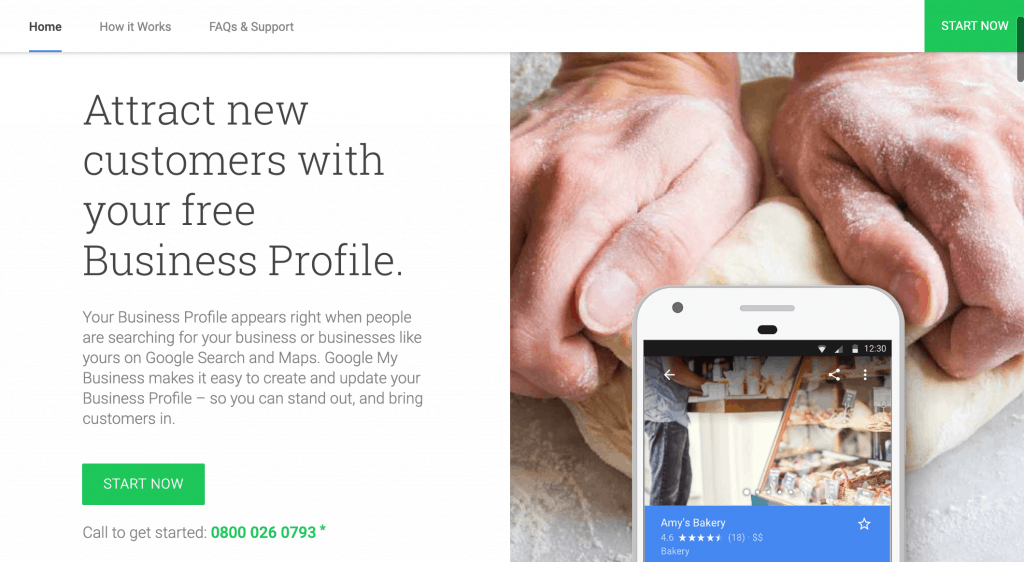
First up, you’re going to want to create an account by heading to Google My Business and hitting the Start Now button on the homepage. Follow the prompts that pop up on the screen after clicking through.
You’ll be asked to fill out your business details, starting with the name of your business, business category, service locations and contact information. It’s important you fill these out accurately as soon as possible but you can edit these at a later date.
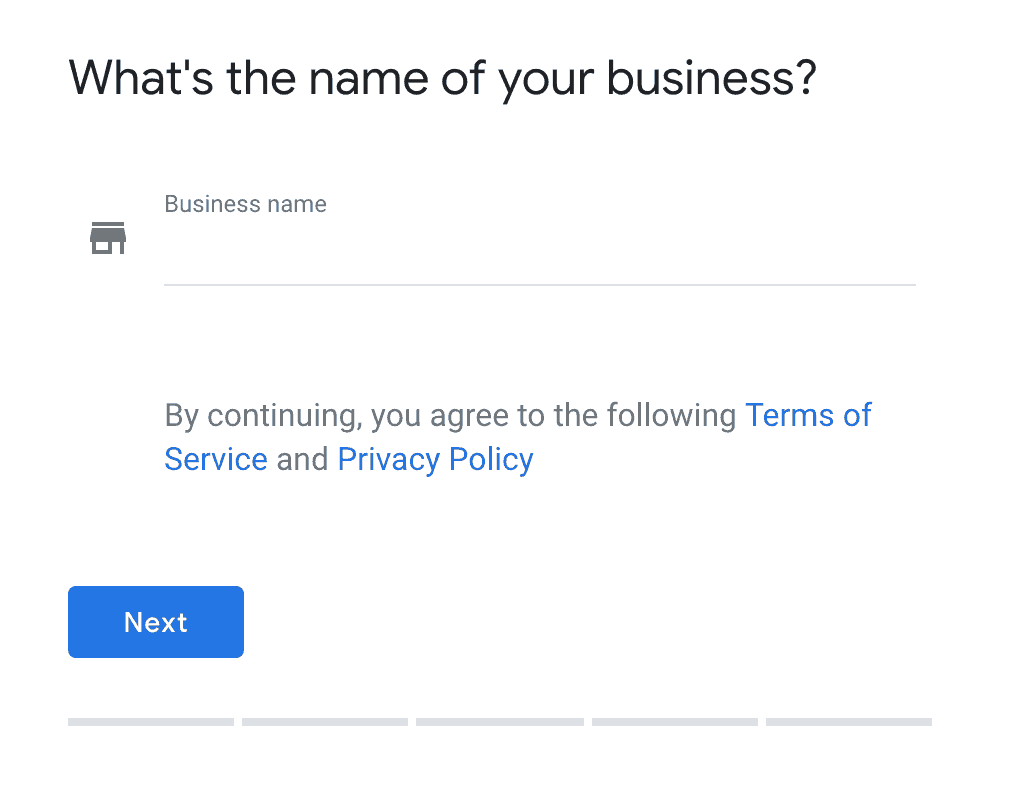
Once you’ve filled out all of the information Google prompts you for, you’ll need to verify your business before your listing will go live.
#2: Verify your GMB listing
After filling out all the basic information of your business, you’ll be prompted to verify your business but you can do this at a later point if you prefer. You’ll find a box in the main dashboard of GMB asking you to verify your listing when you log in.

Click the Verify now button and you’ll be prompted to verify your listing by receiving a postcard from Google, which will be sent to your business address.
Depending on the nature of your business, you may also be able to verify your business over the phone, via email or verify instantly if you’ve already verified your website with Search Console.
https://www.youtube.com/watch?v=2sObwsdA1FE
In many cases, you’re simply going to have to verify by mail and it can take up to four days to receive your postcard from Google. This will contain your verification code which you can use to verify your listing – it’s all pretty simple.
#3: Complete your business profile
Once you’ve verified your business, your listing will start to appear for relevant searches on Google. Now, you’re going to want to make sure all of your business information is filled out correctly. Some of these fields may not be relevant to you and it’s fine to leave anything blank but it’s important to provide as much accurate information as you possibly can.
Here’s what you can include:
- Business name: This should already be filled out by now.
- Business category: This should already be selected.
- Address: This should also be filled out already although unique addresses can be applied to different locations.
- Service areas: This is where you can select which areas your business provides service too (if relevant).
- Operating hours: Select your operating hours for each day of the week, including “closed” or “24 hours”.
- Phone number: Each business location can have its own unique contact number.
- URL: Add the URL of your website.
- Business attributes: Add a variety of attributes, such as free WiFi, wheelchair access, same-day delivery, accepted payment methods and other options.
- Business description: Here, you have 750 characters to describe your business as best as you can.
- Opening date: You can apply opening dates to new locations that haven’t yet opened their doors.
- Photos: Add photos showcasing the best of your business for different categories (interior, exterior, products, menu, video, etc.)
With all that sorted, your Google My Business listing is starting to take shape but there’s still some work to be done.
#4: Add your business locations (if applicable)
If your business is operating in multiple locations, then you’re going to need to add these individually with relevant information so people can find the branch/location closest to them.
Everything we’ve covered so far should apply to the head office, headquarters or commercial centre of your business – eg: addresses, phone numbers, etc.
Luckily, adding a new location for your business on GMB is pretty straightforward.
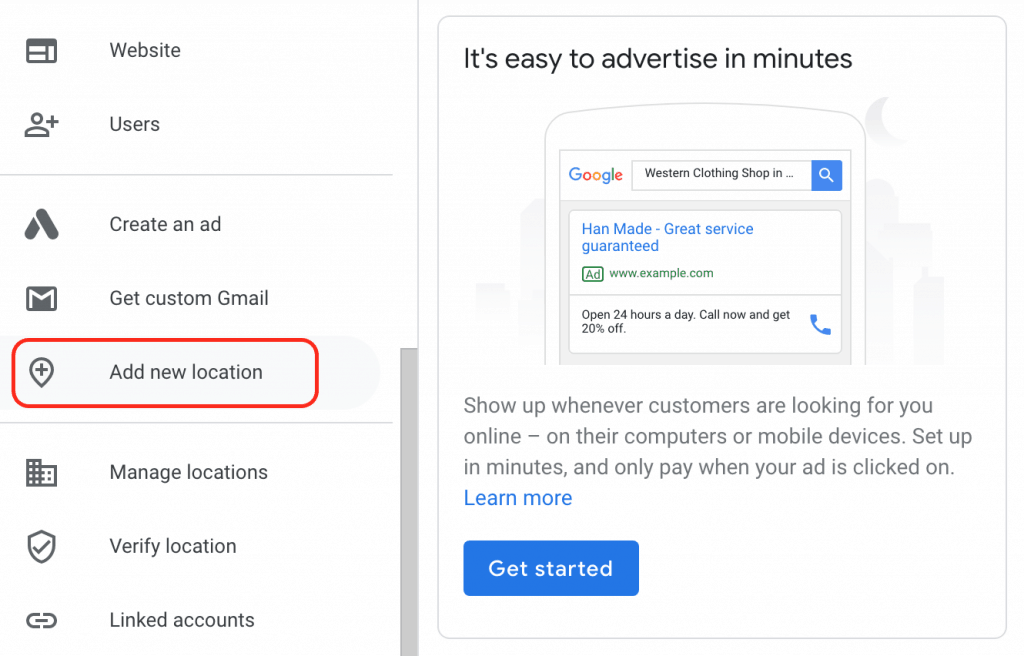
If you head to the main dashboard in Google My Businesses and scroll down the left-hand column, you’ll see an option labelled Add new location. Select this and you’ll be taken to the same walkthrough process you saw when you first created your account.
Essentially, you’re creating new listings for every location with unique business information. If you’re managing multiple, separate businesses, this allows you to do so from the same account but you can also create listings for branches of the same franchise by using the same name and simply changing the relevant info (address, phone number, etc.).
The key thing is to make sure that all information that’s not unique to locations is 100% consistent – business name, website URL, business category, etc.
#5: Add your visuals
With all your business locations added and relevant information complete, it’s time to think about visuals. In Google My Business, you can add photos for each location in multiple categories:
- Exterior photos: Images of your building, sign and surrounding location.
- Interior photos: Pictures showing the inside of your business to give potential customers an accurate impression of what it’s like to stand inside your business.
- Product photos: Highlight the items your business sells.
- Photos at work: Images of your staff doing their job, showing key tasks or services you provide.
- Food and drink: A place to show off what’s on the menu for businesses in the food and hospitality sectors.
- Commons areas: Images of spas, gyms, breakfast rooms and other communal areas that might attract customers to your business.
- Rooms: For hotels, hostels and other accommodation businesses to showcase the rooms they have available.
- Team photos: A place to show the team behind your business and the human element of your brand.
You can find more details and advice about those product categories on this Google My Business Help page.
Decide which categories are going to be most convincing to your target audiences for local SEO and invest in getting quality images that are going to showcase the best of your business.
Of course, potential hotel guests are going to want to see what the rooms are like before call about a booking. Likewise, restaurant customers are going to want to see pictures of the interior and menu.
These images are what often makes the difference when local searchers are choosing which business to contact or visit – so make sure you have the right visuals for each location.
Take your Google My Business account to the next level
We’ve covered everything you need to get your Google My Business account set up correctly but now let’s look at how you can really get the most out of the platform.
Create third-party citations
Google wants to know your business is legit and the easiest way for it to check this is by looking for references to your business elsewhere on the web. You can help the search giant by making sure your business is listed on other platforms, which confirms your business details are correct.
Here are some of the best places to list your business outside of Google My Business:
- Facebook business page
- LinkedIn Company Directory
- Apple Maps Connect
- Bing Places for Business
- The Sun Online Business Directory
- The Independent Business Directory
- Foursquare
- com
- com
- co.uk
The key thing is to make sure all of your business information is 100% accurate and consistent across each platform. This tells Google your details are correct and reliable enough to pass on to local searchers.
Create your first post

Google My Business posts allow you to add content about your events, products and services directly to Google Search and Maps.
To create your first post, click on the business location you want to post for in Google My Business and you’ll see the Create post tab at the top of the next screen.

Give that a click and the first thing you’ll want to do on the next screen is choose which kind of post you want to create. You’ve got four options here and they’re all pretty self-explanatory:
- Product: Posts introducing or talking about individual products.
- What’s New: Business updates for new product releases, new locations opening or anything else you want to announce.
- Event: Announce events at your business locations or elsewhere.
- Offer: Promote upcoming and current special offers.
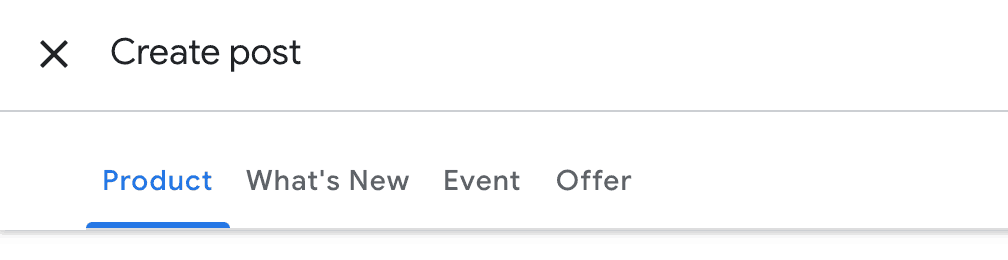
Once you’ve chosen which type of post you want to create, the next thing is to upload an image or video to make your post stand out. You’ll need to make sure your media files meet the following size requirements:
- Minimum: 400 x 300 pixels and 10 KB size limit.
- Maximum: 10,000 x 10,000 pixels and 25 MB size limit.
Now, all you need to do is write your post and the format is a little different for each type of post. For example, with a product post you’ll need to provide a product name, price and optional additional details such as product details and a CTA button.
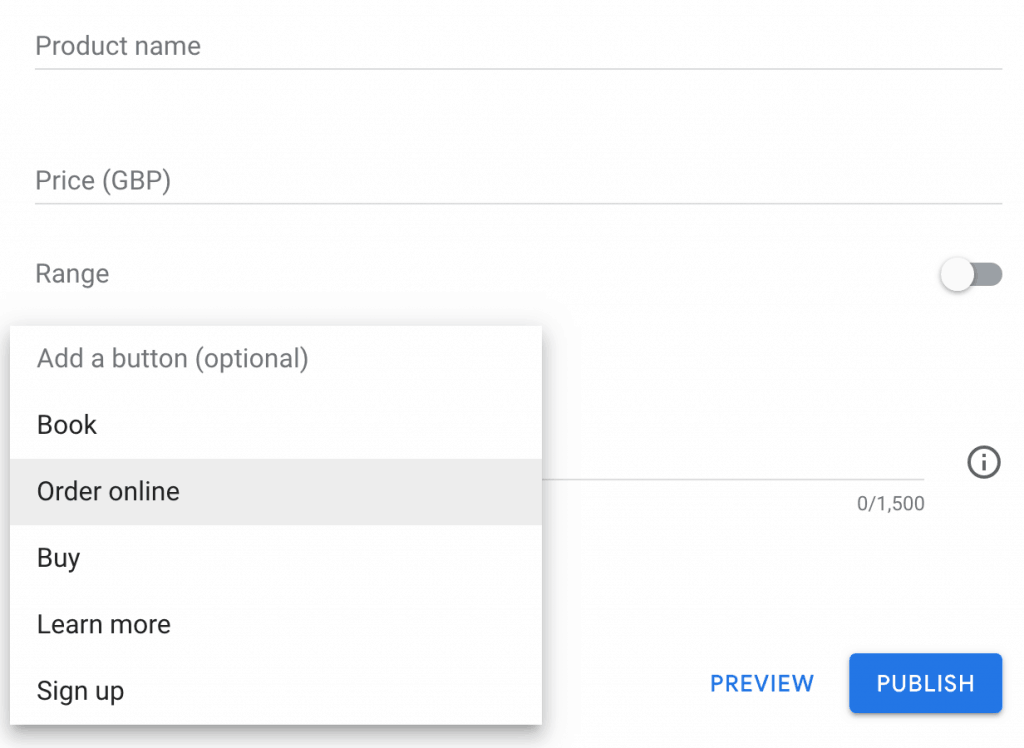
Meanwhile, for event posts you’ll create a title, set your dates and have the option to provide additional info and a CTA button once again.
It’s all straightforward at this point – simply fill out each field and, once you’re done, you can preview your posts to see what they look like before hitting the publish button.
Start getting customer reviews
According to BrightLocal, 86% of consumers read reviews for local businesses and this number jumps up to 95% of people aged 18-34. Customer reviews are one of the most important elements of your Google My Business profile and having a strong collection of positive feedback is going to turn local searches into customers.
This presents two challenges:
- You need to get enough reviews for your average score to seem trustworthy
- You need to get enough positive reviews to score highly
If you’ve only got two customer reviews on your profile, this doesn’t really tell potential customers much. Even if you’ve got top marks, people are going to trust another business with a 4/5 score if they’ve got more than 100 customer reviews.
So how do you get as many reviews as possible?
To get Google reviews from customers, you need to send them a link via email. So, first you need a justifiable reason to request email addresses from your customers (reviews don’t count), such as e-receipts, special discounts, etc.
Once you’ve got their email address, you can tell them they’ll be sent a request to leave a review and kindly ask them to fill it out.
You can’t solicit reviews by offering goods, services or monetary incentives for them. However, you can ask them to help you improve your business and the customer experience – something they’ll hopefully continue to enjoy as regular customers.
You simply have to repeat this process enough times to get a decent volume of reviews.
In terms of getting high scores, there are no secret hacks for this. Make sure you’re delivering a service worthy of 5-star reviews and remember people are more likely to complain when something goes wrong than they are to leave a positive review.
Google My Business best practices
In this last section, we’ve got a list of Google My Business best practices to help you get the best out of the platform and remind you of the key essentials.
- Keep your information up to date
- Make sure your details are always accurate
- Make sure your details are consistent with third-party citations
- Check your business locations show up accurately on Google Maps
- Use images to entice potential customers
- Post regularly
- Answer questions quickly
- Ask customers to leave reviews
- Send follow-up emails asking users to leave reviews
- Respond to every review/question
- Deliver the best service you possibly can to every customer
- Don’t panic when you get a negative review
No business manages to please every customer but it can really hurt when you get that first negative review. You don’t need to panic, though. Keep clam, try to resolve the issue if you can and if the customer is still unhappy, move on. Once you’ve got a few dozen reviews, any average score of 4.0 and above is going to bring the customers in.
You don’t need to be perfect, but you do need to be consistently great.
The rest of it all comes down to optimising your Google My Business account. Use compelling images, make sure your details are always correct, post regularly and always respond to questions/reviews promptly.